Why Do WordPress Sites Break After Updates?
 WordPress Development
|
WordPress Development
|  4 minutes
Table of Contents
- Why Updates Cause Breakage
- The Professional Standard: Never Update Directly on a Live Site
- What to Do When an Update Breaks Your Site
- Reducing Update Risk Going Forward
- Frequently Asked Questions
It’s one of the more frustrating experiences in managing a WordPress website: everything works fine, you apply a routine update, and suddenly the site is broken. Understanding why this happens — and how to prevent it — is essential for any business that depends on its website functioning reliably.
The core issue isn’t that WordPress updates are inherently risky. It’s that the WordPress ecosystem involves many independently developed components interacting with each other, and updates can disrupt those interactions in ways that are difficult to predict.
Why Updates Cause Breakage
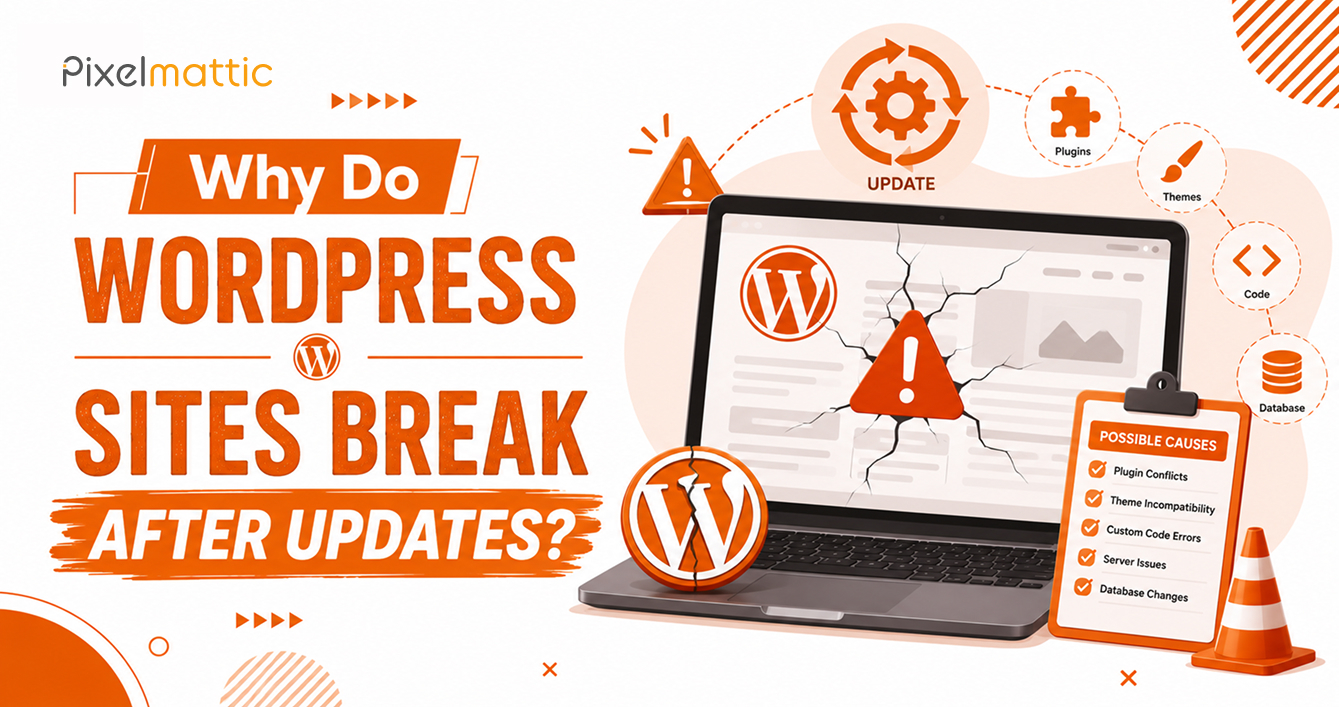
Plugin and theme incompatibility: WordPress core, themes, and plugins are developed independently by different teams. When one component updates, it may introduce changes that another component wasn’t built to handle — resulting in conflicts, errors, or broken functionality.
Outdated PHP or server environment: If your hosting environment runs an outdated version of PHP, newer plugin or WordPress core updates (which increasingly require modern PHP versions) can trigger compatibility errors.
Deprecated functions: As WordPress evolves, older coding practices become deprecated. Themes or plugins that haven’t been updated to reflect these changes can break when WordPress core updates.
Custom code that wasn’t built to survive updates: If a developer directly modified a theme’s core files (rather than using a child theme) or hardcoded customisations without considering future updates, an update can simply overwrite or conflict with that custom work.
Cache conflicts: Sometimes a site appears broken after an update simply because cached versions of files (browser cache, plugin cache, or CDN cache) haven’t refreshed — a display issue rather than a genuine functional break.
The Professional Standard: Never Update Directly on a Live Site
The single most effective way to prevent update-related breakage is to test updates on a staging environment first — a copy of your live site where changes can be applied and reviewed before affecting real visitors.
A responsible update process looks like this: back up the live site; apply the update on staging; thoroughly test key functionality (forms, checkout, navigation, and page rendering); only then apply the same update to the live site; and monitor the live site closely for a period after the update.
What to Do When an Update Breaks Your Site
Don’t panic — most update-related issues are reversible. Restore from your most recent backup (taken before the update) if the issue is severe. If a specific plugin is suspected, deactivate it via FTP or your hosting file manager (this can be done even without dashboard access).
Check the plugin or theme changelog and support forums — update-related conflicts are often reported quickly by other users, and fixes or workarounds are frequently already documented.
If you’re not comfortable performing these steps yourself, this is a reasonable moment to bring in a developer — most update-related fixes are resolved quickly by an experienced professional.
Reducing Update Risk Going Forward
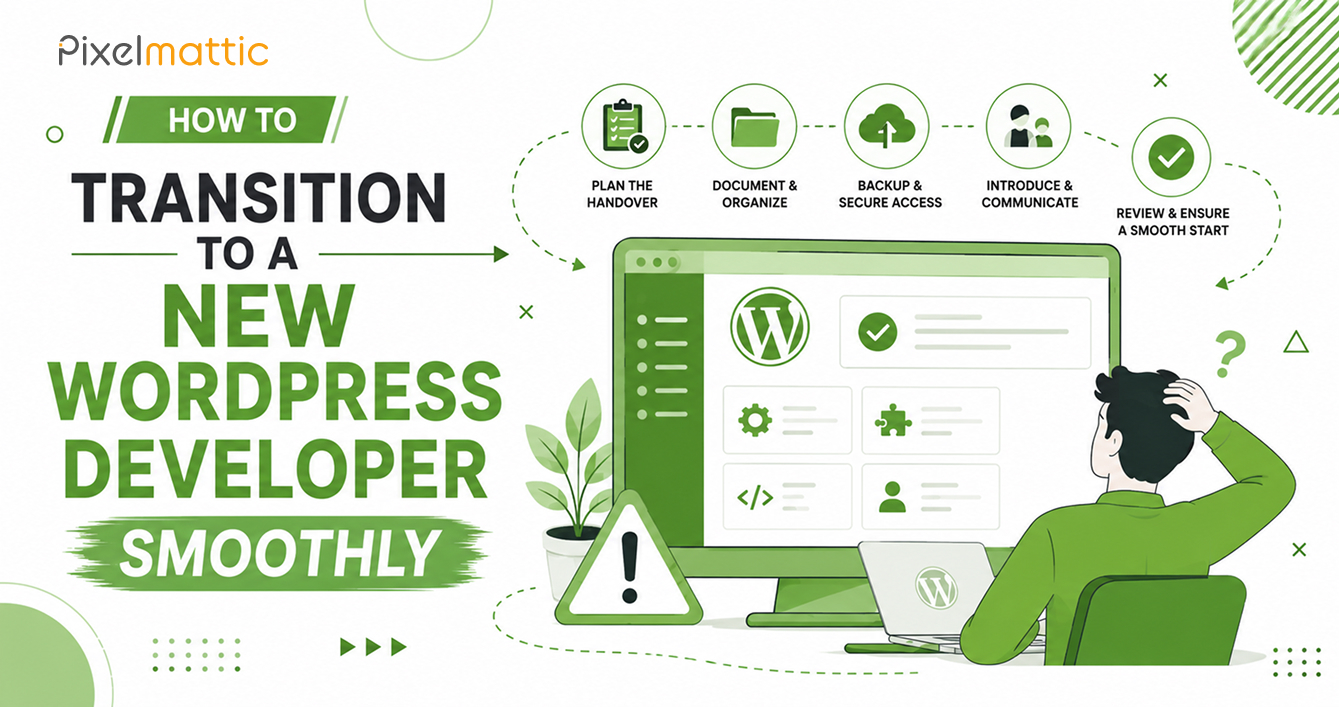
Maintain a staging environment as standard practice. Keep your plugin count as lean as possible — fewer components mean fewer possible points of conflict. Choose well-maintained, actively updated plugins and themes with strong support reputations. Consider a managed maintenance service that handles testing and applying updates on your behalf, particularly if your team lacks the time or technical confidence to manage this internally.
WordPress Maintenance
Tired of Updates Breaking Your Site?
Let Pixelmattic manage your WordPress updates safely, with staging and testing built in.
Frequently Asked Questions
Should I update WordPress plugins immediately when notified?
Not directly on a live site. Test updates on a staging environment first, particularly for major plugin or theme version changes, to catch conflicts before they affect visitors.
How do I fix a WordPress site that broke after an update?
Restore from a pre-update backup if available, or deactivate the suspected plugin via FTP or your hosting file manager. Checking the plugin’s support forum often reveals a quick fix, as update-related issues are typically reported and resolved rapidly by the developer community.
Can I prevent WordPress updates from breaking my site entirely?
You can’t eliminate the risk entirely, since it depends on third-party plugin and theme developers, but a staging environment, regular backups, and a lean, well-maintained plugin stack dramatically reduce the likelihood and impact of update-related issues.
 October 1, 2026
 WordPress Development
 WordPress Development
 WordPress Development
 WordPress Development